
Free Installation GuideWindowsMac

InstallOfficeRight Now.

Get Microsoft Office installed on your Windows PC or Mac in minutes. Our plain-language guide covers every version — Office 365, 2021, and 2019 — with no jargon.

5 StepsWindows Install
5 StepsMac Install
3 Versions365 · 2021 · 2019
100% FreeNo Account Needed
Scroll

Step-by-Step Guide

How to Install Office on Your Device

Pick your operating system and follow the numbered steps below.

Install Office on Windows

Compatible with Windows 10 and Windows 11

5 Steps~15 min
01

Sign in to Your Microsoft Account

Open any browser and go to account.microsoft.com. Use the email address you used when purchasing Office.

02

Click "Install Office"

On your account dashboard, find the Install Office button under your active subscriptions and click it.

03

Download OfficeSetup.exe

The installer file (OfficeSetup.exe) will download automatically to your Downloads folder. Wait for it to finish.

04

Run the Installer

Double-click OfficeSetup.exe. If Windows asks for permission, click Yes. Office will begin downloading and installing.

05

Activate with Sign-In

Once installed, open Word, Excel, or any Office app. Sign in with your Microsoft account to activate your license.

Quick tip: If setup stalls, record any error code, restart the computer, and use Microsoft’s official installation troubleshooter.

What You Can Install

Every Version of Office, Covered

Subscription

Office 365 Installation

Microsoft 365 (formerly Office 365) installs via the cloud. Your apps update automatically and you can install on up to 5 devices with a single subscription.

Includes

Word · Excel · PowerPoint · Outlook · Teams

Perpetual

Office 2021 One-Time Install

Office 2021 is a one-time purchase. You install it once and own it permanently — no monthly fees, no renewals.

Legacy

Office 2019 Legacy Install

Still running Office 2019? The installation process is nearly identical. This guide covers all three versions side by side.

Verified

Safe & Official Process

Every step in this guide uses the official Microsoft account portal. No third-party downloads, no sketchy installers.

Compatibility

Windows 11Full Support
Windows 10Full Support
macOS SonomaFull Support
macOS VenturaFull Support
macOS MontereyFull Support
macOS Big SurFull Support

Resources

Install Office Guides & Tips

All Articles
Close-up of Windows laptop screen showing software installation progress bar in dark room with blue keyboard glow
Windows
Sep 12, 20265 min read

Why Does "Install Office" Fail on Windows 11? Common Fixes

If the Office installer stops at 0% or throws an error code, these targeted fixes resolve the most frequent problems on Windows 10 and 11 without reinstalling Windows.
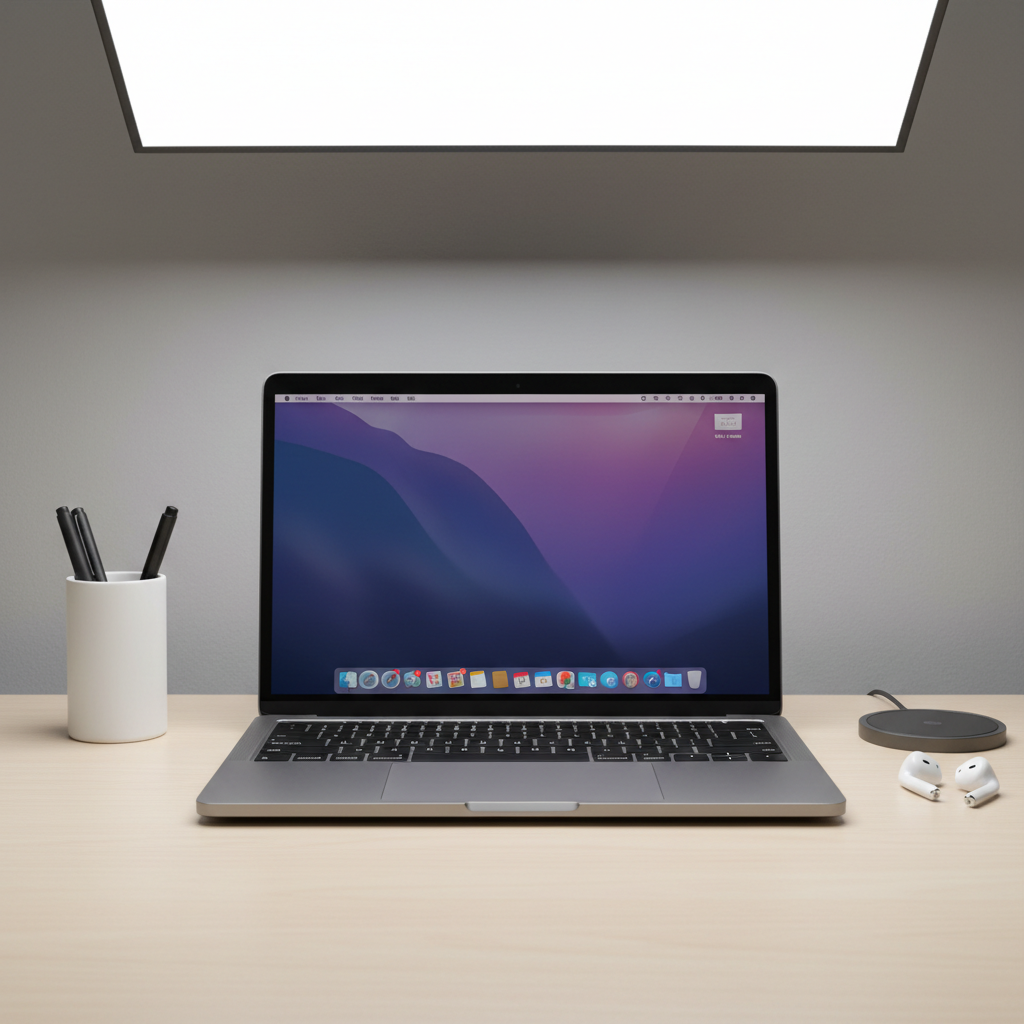
Silver MacBook Pro on white desk with clean minimal setup, coffee cup and notebook beside it, bright natural light
Mac
Sep 08, 20264 min read

Install Office on a New Mac: What to Do First

Got a new Mac and need to install Office? This walkthrough covers the exact order of steps — from signing in to your Microsoft account to launching Word for the first time.

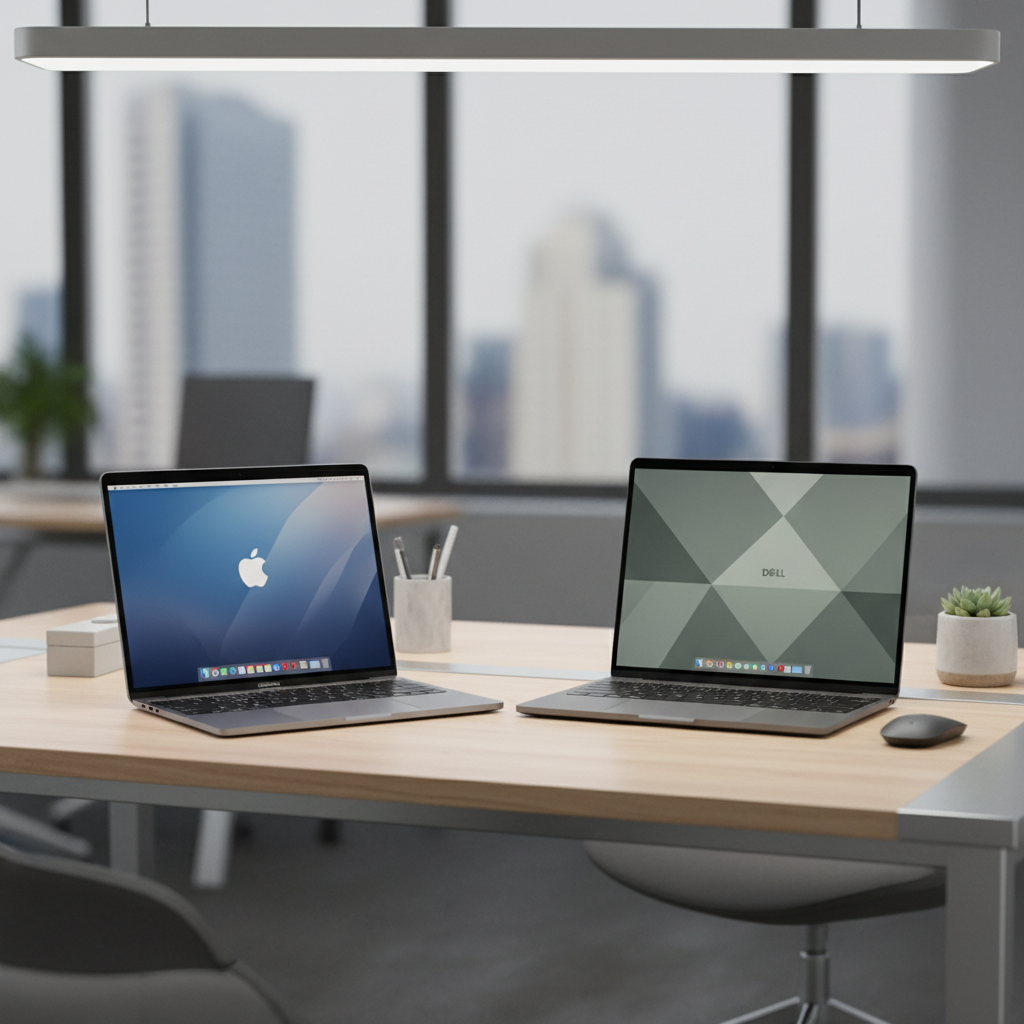
Two laptops side by side on wooden desk showing Microsoft Office applications, warm office lighting, professional workspace
Comparison
Sep 02, 20266 min read

Install Office 365 vs Office 2021: Key Differences

The installation process differs between subscription and one-time versions. Here is exactly what changes — and which version makes sense depending on how you work.

New install guides and troubleshooting articles are added regularly. Check back soon.

Ready to Begin?

Install Office in Under 15 Minutes

Follow our step-by-step guide and have Microsoft Office running on your Mac or Windows PC today — completely free to use.

Official Microsoft Portal Only100% Free GuideUpdated September 2026